How It Works
CS2 Smokes shows smoke line-ups for the premier maps as short throw clips. Pick your map, put the line-ups you might need on screen, and keep the page open next to the game.
Browse SmokesPick a map and side
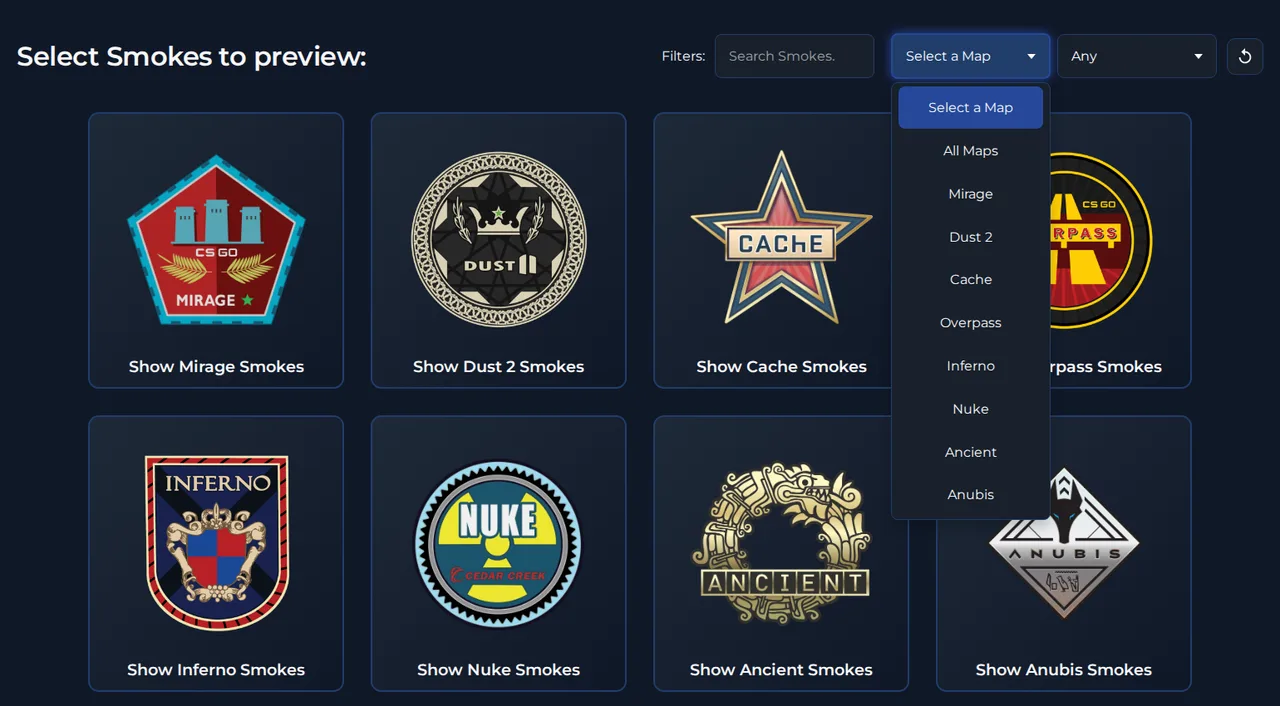
Click one of the map cards, or choose a map in the map dropdown. Then narrow it down with the side dropdown: Terrorist, Counter-Terrorist or Any. The reset button next to the filters takes you back to the start.
Search for a spot
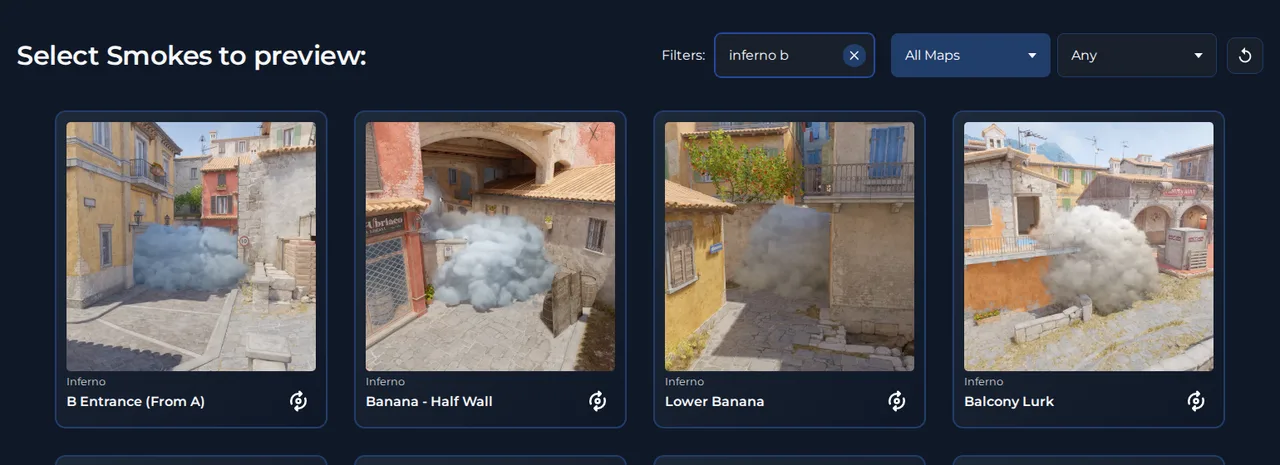
Type a map or spot, like inferno b or mid window. Every word has to match the map name or the smoke spot. If no map is picked yet, searching switches to All Maps, so you search everything.
Keep up to 4 line-ups ready
Click a card to add it to the row at the top, where its throw clip loops. You can keep up to 4 line-ups on screen at once. Put up the ones you might need this round before it starts, and you won't have to search mid-round.
Click a card again to remove it, or use Deselect All.
Flip for the throw position
The front of a selected card shows the throw clip and how to throw it. Hit the flip button to see the back: where to stand on the radar and where you throw from. Cards in the grid below flip the same way.
Instant Smokes
Some sides have a set of smokes you throw right at round start, one for each spawn (for example Ancient, Counter-Terrorist). Pick that map and side, and an Instant Smokes button appears next to the filters.
One click puts the whole set on screen, even if it's more than 4. Click it again to get your previous cards back.
Make the cards yours
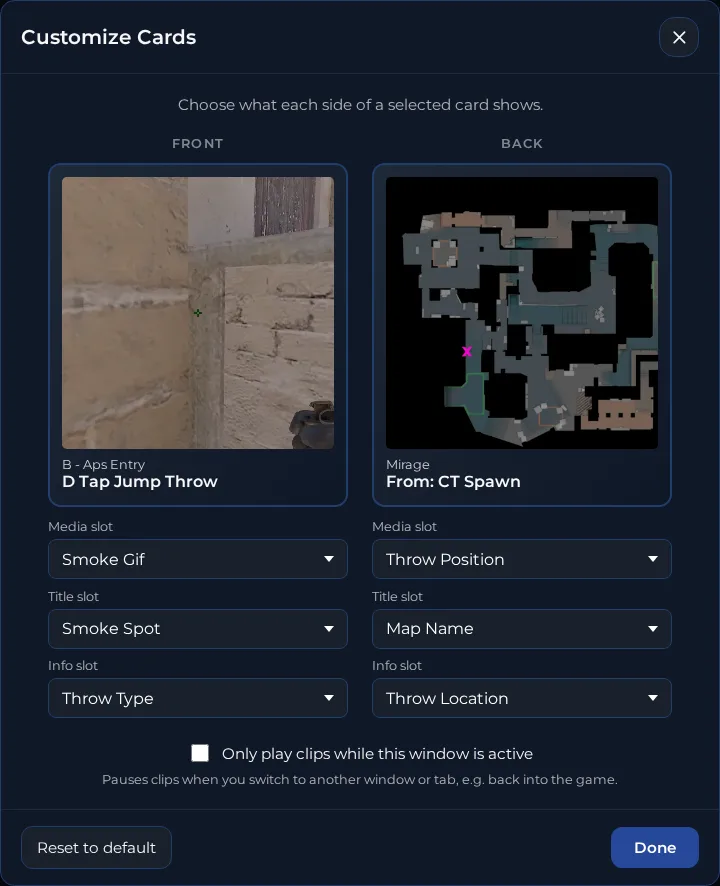
The gear icon in the top bar opens Customize Cards. For the front and back of selected cards, choose the picture (Smoke Preview, Smoke Gif or Throw Position) and the two lines of text (Map Name, Smoke Spot, Throw Location or Throw Type).
Turn on Only play clips while this window is active to pause the clips while you're back in the game. Your choices are saved in this browser.
Pause clips and shortcuts
Pause Clips, next to Deselect All, stops every clip at once, e.g. on a slow connection or to save battery.
- P
- Pause or play all clips (while cards are selected)
- Esc
- Close the filters or Customize Cards
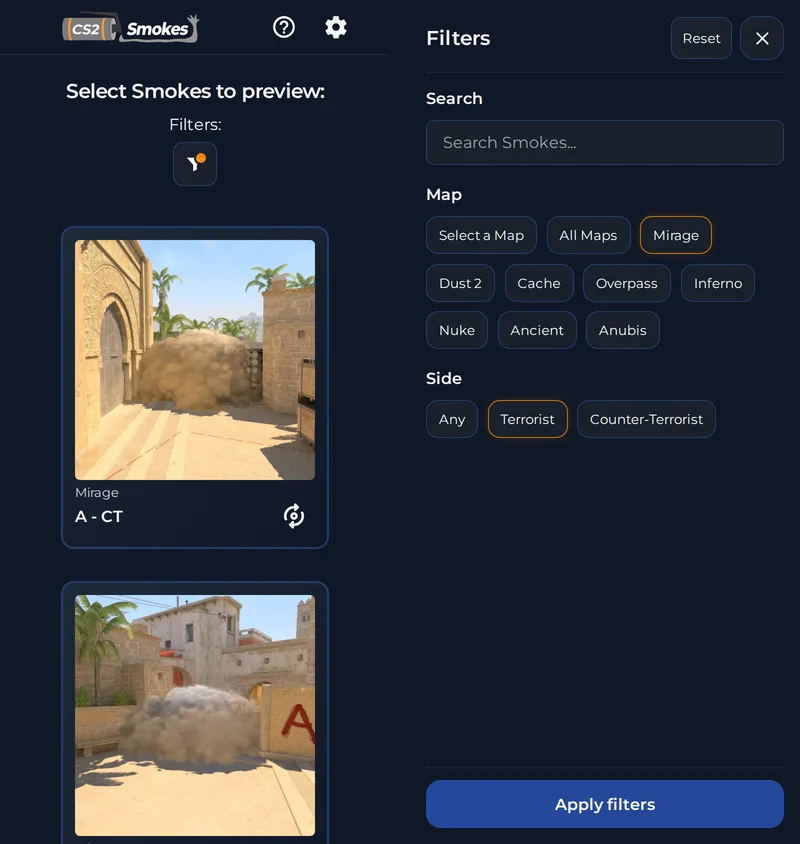
Filters in one tap
On small screens the filters sit behind the filter icon. Pick a map and side, then tap Apply filters. An orange dot on the icon shows that a filter is on.